Thursday, February 28, 2019

How to arrange the icons in the Desktop

View Options in the Desktop

Desktop options are the important features in the computer which will display about on the screen options like view, sort  by, Refresh, Paste, Paste Short cut, New,  Screen resolution, Gadgets, Personalize.

Desktop-Option.jpeg

The Purpose of desktop options used for display the different type of operations on the computer which will show in the above picture.

view 


View is one of the option in the desktop screen which will display the desktop icons settings in the computer. When we right click on the mouse then view option will be display in the screen.  The purpose of view option used to display the desktop screen icons like they are:
View-Options.jpeg

1. Large icons.

2. Medium icons.
3. Small Icons.
4. Auto arrange icons.
5. Align grid to icons.
6. show desktop icons.
7. Show desktop gadgets.

Large Icons


Large icon is one of the option in the view which will display the large icons on the screen. How to set the large icons in the desktop Screen.

1. Right click on the mouse Pinter in the desktop screen.

2. Click on the View Menu then select the Large icons.
3. Its automatically icons will be large in size which is shown in the below image.
Large-Icons.jpeg
Medium Icons

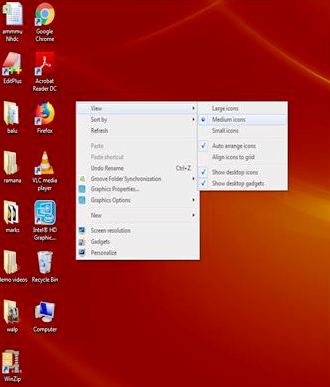
Medium icon is the one of the option in the view which will display the medium icons on the screen. Here how to display the medium icons in the desktop screen.

1. Right click on the mouse Pinter in the desktop screen

2. Click on the View Menu then select the Medium icon option
3.Its automatically icons will be medium in size which is shown in the below image.
Medium Icons.jpeg
                                   

Small Icons

Small Icon is the one of the option in the view which will display the small icons on the desktop screen. Here how to display  the small icons in the desktop screen. 

1. Right click on the mouse pointer in the desktop screen.
2. Click on the View Menu and then select the Small Icons option.
3. Its  automatically icons will be smaller in size which is shown in the below image.

Small-Icons.jpeg

Auto Arrange icons

Auto arrange icons is one of the option in the view which will display  the icons in the proper way or step by step arrange automatically. Here how to display the 

1. Right click on the mouse pointer in the desktop screen.
2. When the icons are in improper position in the desktop like different order then click the auto arrange icons which is shown on the below image.

Auto-arrange-Icons.jpeg

3. Click on the View Menu and then select the auto arrange icons.
4. Its automatically arrange all the icons in the proper way which is shown in the below image. 

After-Arranging-the-icons.jpeg

Show Desktop Icons 

Show Desktop icon is one of the option in the  view which will show the icons hidden that means icons are not to display on the screen. Here the how to hide the icons in the screen.

1. Right click on the mouse pointer in the desktop screen.
2. Click on the View Menu then select the show desktop icons.
3. Its automatically all the icons are hidden position that means icons are not display on the screen which is shown below image.

Show-Desktop-Icons.jpeg

Show Desktop Gadgets

Show desktop gadget is one of the option in the view which will display about on the desktop gadgets on the desktop screen like Time clock, Calendar, Images, Cpu Meter Etc. Here how to display the desktop gadgets on the desktop screen.

1. Right click on the mouse pointer in the desktop screen.
2. Click on the View Menu then select the Show Desktop Gadgets
3. Its automatically all gadgets will display on the desktop screen which is shown in the below image.

Show-Desktop-Gadgets.jpeg

Monday, February 18, 2019

Tools And Parts Of Operating System


Desktop Screen and their features

The Desktop is a one type of display screen which will see a particular option like movies, videos, images, games and any type of applications in a screen is called as desktop. Desktop are available so many types like

Ex: - T.V. LED TV , LCD T.V, etc.

The desktop is your working surface that which is representing a physical work space at home or work. It is one of the screens which you can see your computer tasks directly whether it is working are not.

Desktop-Screen.jpeg

➠ In the above image we can clearly observe the desktop screen. Whatever in the  computer operations is done by the CPU which the input is given by the user then it will display on the desktop screen.

Desktop Tools and options.jpeg

Icons :- The small pictures of a desktop are the shortcuts to the program called as icons which is clearly shown in the above image with point number 1.

When we double click on the icons then to start a program. By clicking the Start Button also shown a list of program and all other options will be shown on the computer.

Task Bar:- The sky blue bar across the bottom of the screen is called as Task Bar. which can display the task  of the running programs in the task bar that as shown in the  above image point 2.

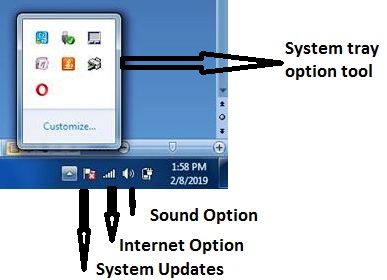
System Tray:- It is an area where you can access the programs  that are running on the background. The more program you have in this area, the longer it takes for the computer to boot up.  
  
System-Tray-Options.jpeg

The system tray of a desktop area has icons which as shown in the image to indicate which programs are currently running in the background. Once you can single  click on the left arrow button then you would be able to open and see the all options.

➠ Volume or Sound Option:- The speakers icon will open the volume controls. Once you single click on the volume button then you make a quick volume change.
Volume-Controller.jpeg


Click and drag on the bar to raise or lower the overall volume, else click on the speaker button then it will become the mute option as shown on above picture.


Mixer-Controller.jpeg

To view the sound setting, Just click Mixer button icon in task bar on open the volume controller which is shown in the above picture.

➠ Windows/ System Updates:-  A red flag symbol mark is nothing but the Windows Updates. If the computer has any updates from the Micro-soft then that symbol will be appear on the flag and you can identify what needs to be done in the picture, Once you single click then your computer will check all the updates .


Windows-Updates-Power-Button.jpeg

Power Button:- They are two symbols for power one  is a battery and the other is a power cord with charge indicator bolt. When you put on the charge of any laptop is plugged into the wall outlet and is charging.

Wireless Network:- Laptop computers are the capable of connecting to a wireless network to again access to the internet. To  connect a network, right click on the wireless icon and choose which is shown in the below picture.


Wireless-Network.jpeg

 View Available Wireless Network:-  In the above picture appear that you can choose the particular network from the list of desire network and connect the connection button .

Saturday, February 16, 2019

How To Use The Keyboard

Keyboard and their Functions

➨ Keyboard is one of the hardware component and also a input device. A computer keyboard is very much using like a typing writer keyboard. 

➨ If you are writing a letter or calculating numerical data then your keyboard is the main way to enter the information in to your computer.
Keyboard .jpeg

➨ Did you know that ?. You can also use your keyboard in control  on your computer. Here you can learn some simple keyboard commands  which can help you work more efficiently. This post updates the basics of keyboard operation in the below pictures.

How the keys are Organised

The keys on your keyboard can be classified can be divided into the several based on the functions. thy are: 

1 .Function Keys
2. Control Keys
3. Numerical keys 
4. Navigation Keys
5.Typing Keys.

Function Keys:

Functions keys are used to perform the specific task on computer which will conjunction with CTRL & ALT keys. It can be labels as F1, F2 , F3 , upto F12  which can be shown in the below image.

Functions-Keys.jpeg

ESC Key in the upper left corner keys which will used to close any menus options on computer. Example if you click the Window Button then you want to close menu and press ESC key.

  • F1 key  is used for help options whatever you want information from the computer.
  • F2 Key is used for rename the folder name or file name.
  • F3 key  is used for search folder or document.
  • F4 Key is used for display the location of the file.
  • F5 Key is used for the Refresh the page.
  • F6 Key is used for Cycle the Tab.
  • F10 key is used for active the Menu Bar in a folder.
  • F11 key is used for display between the full screen and normal  screen in browser.
Typing Keys:

➨ When ever you need to type something in a  program, email message, or  text box, you will see a cursor or blinking an vertical line (|) this is a cursor also called as insertion point.


Typing-Keys.jpeg

➨ It shows that the where text you type will begin. You can move the cursor by clicking desired path with the mouse or by using the navigation keys as shown in the above image. 

➨ Some of the keys can also added to letters, numerical, punctuation marks, and symbols  and typing keys like Shift, Caps Lock, Tab, Enter, Space bar, and Backspace  which is show in the below images.


CapsLick-Shift-TabKey-Space-Bar-EnterKey.jpeg
  • Caps Lock Key is used in the typing text. While pressing this key once will make all letter capitalized . Press again this key for turn off the caps lock .
  • Shift Key  is used for combination of letters with any letter you type an Upper case or Capital Words
  • Tab Key is used for creating 3 to 4 space gap between the letter at a time.
  • Space Bar Key   is used for creating a one space gap between the words.
  • Back Space Key is used for remove the space of before the cursor.
  • Enter Key is used for the go to next line in the document.
Control Keys:

Control keys are used for the conjunction with other keys to perform the various function working. So some of the keys are CTRL, ALT, Window Button which is shown in the above image.

Ctrl Key is used for the conjunction with the other keys to perform various function. (Like Ctrl + S  save the document  in the Ms-Word).

Windows Key woks like pressing the Start Button  on the computer screen.

ALT Key is used for another helper key used in conjunction with other keys.

Some Of the Useful Short Cut keys

➥ Window Key     =  Open the Start menu.
➥ ESC  Key            =  Close the menu bar.
➥ Alt+Tab              =  Switch between the open windows.
➥ Alt + F4              =  Close the windows.
➥ Ctrl + A              = Select all the data.
➥ Ctrl + S               =  Save the file or document.
➥ Ctrl + C              =  Copy the file or document.
➥ Ctrl + X             =  Cut the data.
➥ Ctrl + V             =  Paste the data.
➥ Ctrl + Z             =  Undo .

Navigation Key:

The Navigation keys is used to move the cursor and around in document and web pages which is shown in the below image.


Navigation-keys.jpeg

➥ Arrow Keys  : Used for move the cursor the document and scroll the web pages .
➥ Home             : Used for move the cursor to starting line or begging of a line of text .
➥ End                 : Used for move the cursor  to the end of a line .
➥ Page up          : Used for move the page from down to up.
➥ Page Down   : Used for move the page from up to down.
➥ Delete            : Delete the file or document.
➥ Insert             : When typing to over the words you have already typed .
➥ Prnt Scrn      : Used to Print the screen of any thing in the computer.
➥ Scroll Lock   : Used to lock the screen page.
➥ Pause Break : Used to pause or break in page.

➧  Numerical keys:

Numerical keypad shows the number like 0 to 9 which i sued for the calculating addition, subtraction, multiplication, division, etc. we can also use the navigation number by using the number such as 4 & 6 are left and right direction , 8 & 2 are the bottom and up direction which is shown in the below image.  


Numerical-Keys.jpeg

In the above image 3 yellow indications shows about on Num Lock, Caps Lock, Scroll Lock.