Monday, December 23, 2019

paragraph alignment in ms word

Horizontal text Alignment alignment display the appearance and orientation of the edges of the paragraph. Like Left aligned text, Right aligned text, centered text,  or justified text. 

Text alignments is one of the options in ms word which can be use to  adjust the paragraph like left alignment, right alignment center alignment. By default paragraph have contain left alignment in the document which is shown below image.
paragraph alignment in ms word 2007.jpeg
Paragraph alignments are classified into 4 types they are:
  1. Left Alignment.
  2. Right Alignment.
  3. Center Alignment.
  4. Justify the text.
Left alignment 

Left alignment is one of the option in ms-word which can be use to align  the text in the left side margin. That is shown in the below image.
Left alignment in ms word 2007.jpeg
1. Write a sample text on a word document.
2. Select the text  or paragraph that you want to align.
3. On the home tab, in the paragraph options, click the left align button option.
4. Enter short cut key for left alignment Ctrl + L.
5. Left alignment is a default option when you take a empty document in MS-word.  

Right alignment

Right alignment is one of the option in ms-word which can be use to align  the text in the Right side margin. That is shown in the below image.
 right alignment in ms word 2007.jpeg

1. Write a sample text on a word document.
2. Select the text or paragraph that you want to align .
3. On the home tab, in the paragraph options, click the Right align button option.
4. Enter the short cut key for Right alignment Ctrl + R.

Center Alignment

Center alignment is one of the option in ms-word which can be use to align  the text in the center side margin. That is shown in the below image.
center alignment in ms word 2007.jpeg
1. Write a sample text on a word document.
2. Select the text or paragraph that you want to center .
3. On the home tab, in the paragraph options, click the Center align button option. (OR)
4. Enter the short cut key for center alignment is Ctrl + E.

Justify

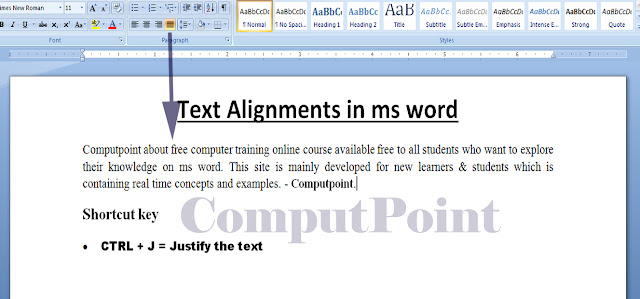
Justify is one of the option in ms-word which can be use to adjust the text or paragraph with full of margin. That is shown in the below image.

justify the text in ms word 2007.jpeg
1. Write a sample text on a word document.
2. Select the text or paragraph that you want to Justify.
3. On the home tab, in the paragraph options, click the justify align button option. (OR)
4. Enter the short cut key for Justify alignment Ctrl + J.

Saturday, August 10, 2019

Clipboard Tool in Ms Word

Clipboard Option in  MS-Word


Clipboard is one of the tool option in Ms Word. Which is used to show the office clipboard task pane that is shown in the below image. 
Clipboard-tool-in-ms-Word.jpeg
Clipboard tool can be classified into 4 types they are:
  1. Cut (Ctrl + X)
  2. Copy (Ctrl + C)
  3. Paste (Ctrl + V)
  4. Format painter (Ctrl + Shift + C)
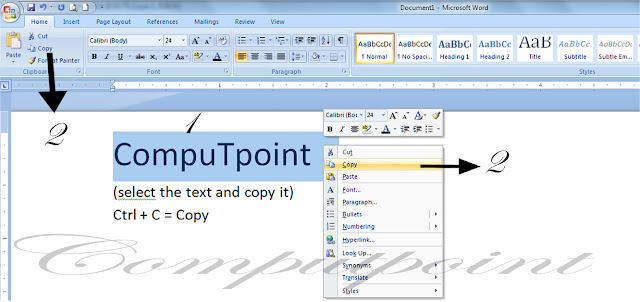
➧Copy: Copy is one of the tool option in ms word, which is used to copy the selected text and put it on the clipboard that is shown in the below image.
Copy-option-in-ms-word.jpeg
Copy image 1
1. Take a simple text on a document like CompuTpoint.
2. Select it all the text through the mouse (or) Ctrl + a shortcut key.
3. Right click on the mouse and options will display.
4. Click on the copy option or click shortcut key (Ctrl + C).
5. Automatically text will be copied.

➧ Paste: Paste is one of the tool option in ms word, which is used to paste the text that means to display the double text which is shown in the below image. 
Paste-Option-in-Ms-Word.jpeg
Paste image 2
1. Already we copy the text in the image 1.
2. Right on the click mouse .
3. Select on the paste option or click short cut key ( Ctrl + V ).
4. Automatically text will be pasted.

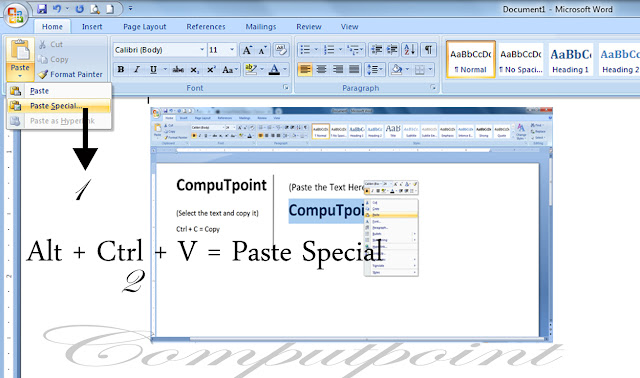
Paste special : Paste Special is one of the  option on  paste tool option in ms Word. Which is used to paste and display the page screen of a document that is shown in the below image.
Paste-Special-in-ms-word.jpeg
Paste Special Option
1. Click on the paste tool bar.
2. Select the Paste special option or click shortcut key Alt + Ctrl + V which is shown in the image.
3. Automatically the page screen will be pasted.

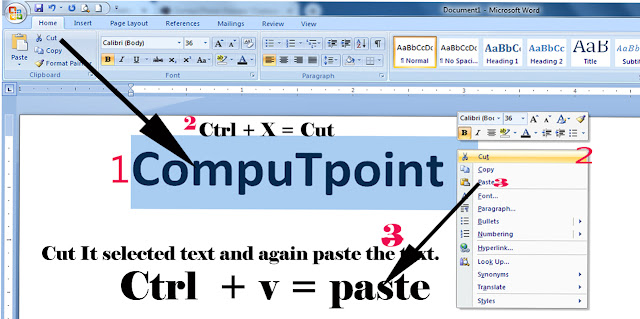
Cut: Cut is one of the tool option in ms word, which is used to cut the selection from the document  and put it on the clipboard that is shown in the below image.
Cut-Option-in-ms-word.jpeg
Cut image 
1. Take a simple text on a document.
2. Right click on the mouse and selected the cut option or click Ctrl + X 
3. After cut the text and place the text wherever you want by using paste option or click Ctrl+ v.

Friday, August 2, 2019

Applying the text colors in ms Word

The Text highlight Color

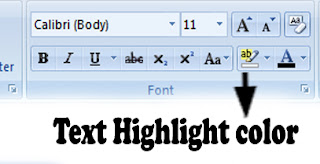
Text Highlight Color: Text highlight color is one of the tool on font setting option in ms word. which is used to applying color on make text look like it was marked with highlighter pen. which is shown as below image.
Text-Highlight-color-in-ms-word.jpeg
  1. Click on the Text highlight color tool option and it display the some color on the screen which is shown in the below image.
    Text-highlight-colors.jpeg
  2. write a sample text on a document example like  Computpoint.
  3. Tap the right side option bar on the text highlight tool. 
  4. Select the particular color for highlight a text.
  5. Then automatically text will be highlight.

                      Apply-Text-Highlighting-color.jpeg

Applying the font color


Font color:  Font color is one of the tool on font setting option in ms word.  which is used to apply the change text color which is shown in the below image. 
Change-Font-color-Tool-in-ms-Word.jpeg
  1. Click on the font color tool option and it display the different type of colors which is shown in the below image.                                                                                  
  2. In the above image, we have four types of colors option they are: Automatic Color, Theme Colors, Standard Colors, More Colors.
  3. Automatic is the default color option whenever we take a new document in the ms word.
  4. Theme colors are the option to changing the font colors of a text .
  5. Standard colors are used to fix the font color of a text.
  6. suppose we want to take more colors then we click on the  more colors option.
  7. we take an example text on a page  and select the any colors of the options. Then its automatically change the font color of a text.
Changing-the-font-color-of-text.jpeg